
Installing your FMM003
The FMM003 plugs into your vehicle’s OBD-II diagnostic port, using the extension cable that comes with it. There’s no wiring and you don’t need an auto electrician. Most installs take a few minutes.
You can install it yourself by following the steps below. If you’d rather not, we can install it for you for a fee — ask us.
What you get
Section titled “What you get”- The FMM003 tracker, with its SIM already inside. Mobile data is included in your plan, and there’s nothing to set up on the tracker itself.
- An OBD-II extension cable. One end goes into the vehicle’s port and the tracker plugs into the other, so the tracker can sit tucked away instead of hanging out of the port.
You’ll also need a few cable ties to hold the tracker in place. They aren’t included, but any hardware or auto parts store has them.
Before you start
Section titled “Before you start”- Have the vehicle parked somewhere with a clear view of the sky, not in a basement or deep inside a shed. The tracker needs GPS to find its position.
- Turn the ignition off. Teltonika says the ignition must be off when the tracker is removed; have it off when fitting it too.
Find the OBD-II port
Section titled “Find the OBD-II port”The OBD-II port is a small, D-shaped socket with two rows of pins. On most cars, utes and vans it’s under the dash on the driver’s side — usually near the steering column or down by the kick panel.
Can’t find it? Check the owner’s manual (look up “OBD” or “diagnostic connector”), or ask your dealer or mechanic.
Plug it in
Section titled “Plug it in”- With the ignition off, plug the extension cable into the vehicle’s OBD-II port. It only fits one way. Push it in firmly until it’s fully seated.
- Plug the tracker into the other end of the cable, and push it fully home too.
- Tuck the tracker up under the dash, out of the way of feet, the pedals and the steering column, and clear of any airbag. Behind plastic trim is fine. Avoid spots boxed in by metal, which weakens its GPS and mobile signal.
- Hold it in place with cable ties, so it can’t rattle loose or get kicked. Don’t stretch, kink or pinch the cable.
- If you can, put it where you can still see its two lights with a quick look under the dash. See what the lights mean.
- Start the engine and drive for a few minutes, ideally out in the open.
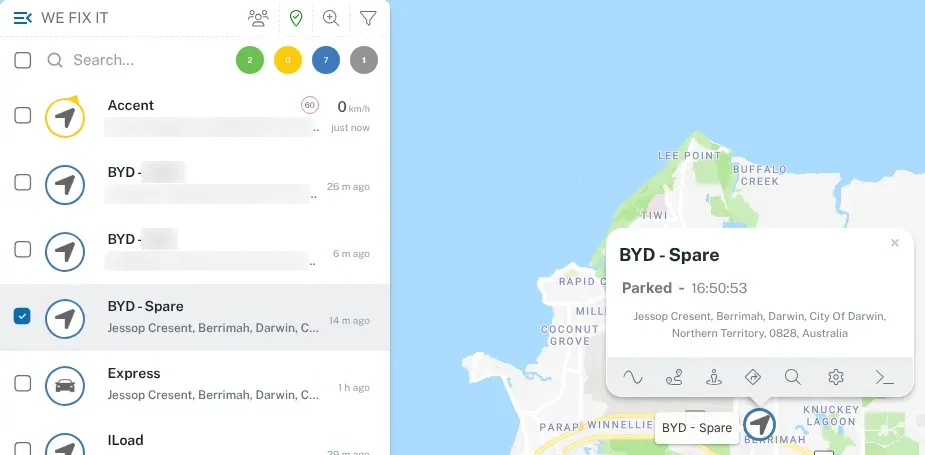
- Log in to the dashboard. The vehicle should appear on the map within a few minutes.
Why the extension cable?
Section titled “Why the extension cable?”A tracker plugged straight into the port sits right where a driver’s knee or boot can knock it loose, and that sets off unplug alerts. On the cable, the tracker can be tied up out of the way, and it’s out of sight too.
It also makes servicing easier. A mechanic who needs the port unplugs the cable from it and plugs it back in afterwards. The tracker stays tied in place. See Servicing and unplugging.
If a vehicle is on a scan tool often, a Y-splitter leaves a spare socket so the tracker never has to come off — ask us.
Keep it dry, and keep it closed
Section titled “Keep it dry, and keep it closed”The FMM003 is not waterproof. Teltonika rates it IP41 and notes it is susceptible to water and humidity. Don’t mount it where it could get wet, such as near a leaking door seal or in a vehicle that gets hosed out inside.
Don’t open the tracker or take out its SIM unless we ask you to — then follow Removing and refitting the SIM card — and never use the SIM in anything else. On an Inc. tracker plan, if a tracker develops a fault or fails through fair wear and tear during its 36-month term, we repair or replace it free. A tracker that’s lost, stolen or damaged — for example by water, an accident, a bad install or tampering — is replaced for a fee. On a Service only plan the tracker is yours, so a replacement means buying a new one.
It’s not showing on the map
Section titled “It’s not showing on the map”Give it 10–15 minutes of driving with the engine running. If it still isn’t there:
- Check both connections are pushed fully home: the cable into the vehicle’s port, and the tracker into the cable.
- Check the lights — see what the lights mean.
- Make sure you drove somewhere with mobile coverage and a clear view of the sky.
- Work through the tracker offline checklist.
Still nothing? Contact us with the vehicle’s name or registration and we’ll check the tracker from our end. Phone and email support runs 8:30am–5:00pm Darwin time on business days.