
Fuel and odometer
Your tracker can do more than report where a vehicle is. On many vehicles it can also read the fuel level and the real odometer straight from the vehicle’s own computer, through the OBD-II port. This page explains what you get, and how to keep the numbers on the platform in step with the dash.
Fuel level
Section titled “Fuel level”On supported vehicles, the tracker reads the fuel level the vehicle reports and sends it to the platform with its regular position updates. That means you can:
- see roughly how much fuel a vehicle has without walking out to the yard;
- spot a big drop in fuel that doesn’t match the driving;
- get a better picture of fuel use across the fleet.
The reading is the vehicle’s own figure, the same one that drives the fuel gauge. Like the gauge, it’s a guide, not a measurement to the litre.
Real odometer
Section titled “Real odometer”On supported vehicles, the tracker can read the odometer reading from the vehicle itself. When that works, the platform shows the same kilometres as the dash.
When the vehicle doesn’t share its odometer, the platform still measures distance from GPS as the vehicle drives. GPS distance is close, but it won’t match the dash to the kilometre, and it starts from whatever figure the platform was given.
Make the platform match the dash
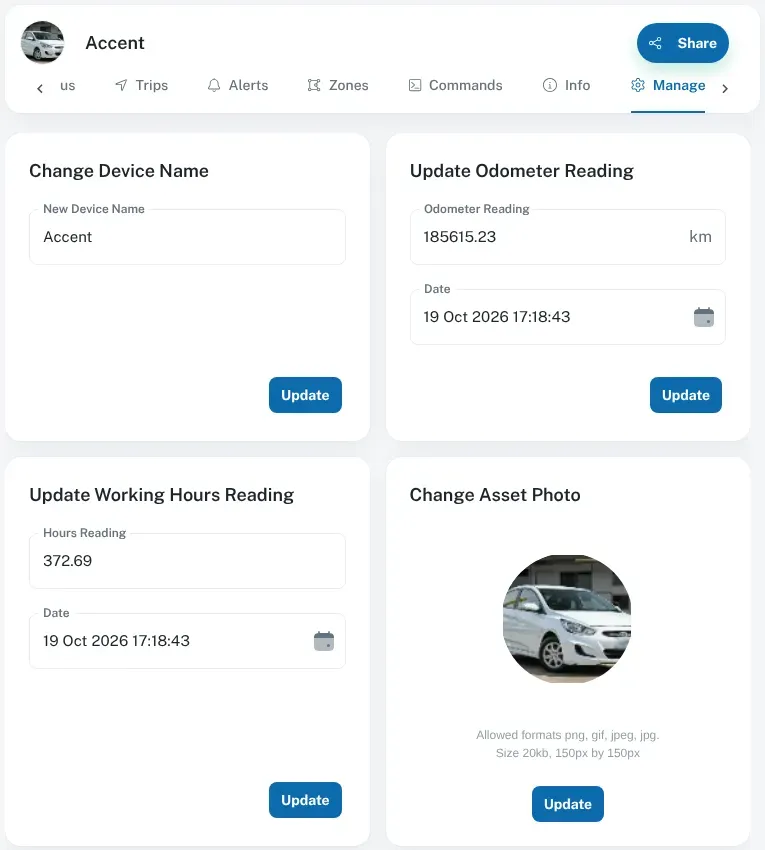
Section titled “Make the platform match the dash”You can adjust a vehicle’s odometer and engine hours on the platform, so they line up with what’s on the dash. The dashboard calls engine hours Working Hours. This is worth doing when:
- a tracker is first fitted to a vehicle that already has kilometres on it;
- a tracker is moved to another vehicle;
- the platform’s figure has drifted from the dash over time.
Accurate kilometres and hours make it easier to plan servicing, check usage against your records, and keep your own logbooks straight.
To adjust the figures:
- Read the current odometer (and engine hours, if your vehicle shows them) from the dash. Take a photo so you have a record.
- Log in to the dashboard and go to Asset Info. Select the vehicle and open the Manage tab.
- Enter the odometer reading under Update Odometer Reading, and the engine hours under Update Working Hours Reading.
- Click Update on each, then check the vehicle’s details show the new figures.
Fuel or odometer not showing?
Section titled “Fuel or odometer not showing?”If you expected fuel or odometer data and it isn’t there:
- Check the vehicle has been driven since the tracker was plugged in. Readings come through with the tracker’s regular updates.
- Check the vehicle is on the compatibility list for that data.
- Work through odometer or fuel not showing.
If it still isn’t showing, let us know the make, model and year of the vehicle and we’ll look into it.