
Your first day
Your trackers are plugged in and you’ve logged in. Here’s what you’ll see, and what to set up in your first week.
What you’ll see
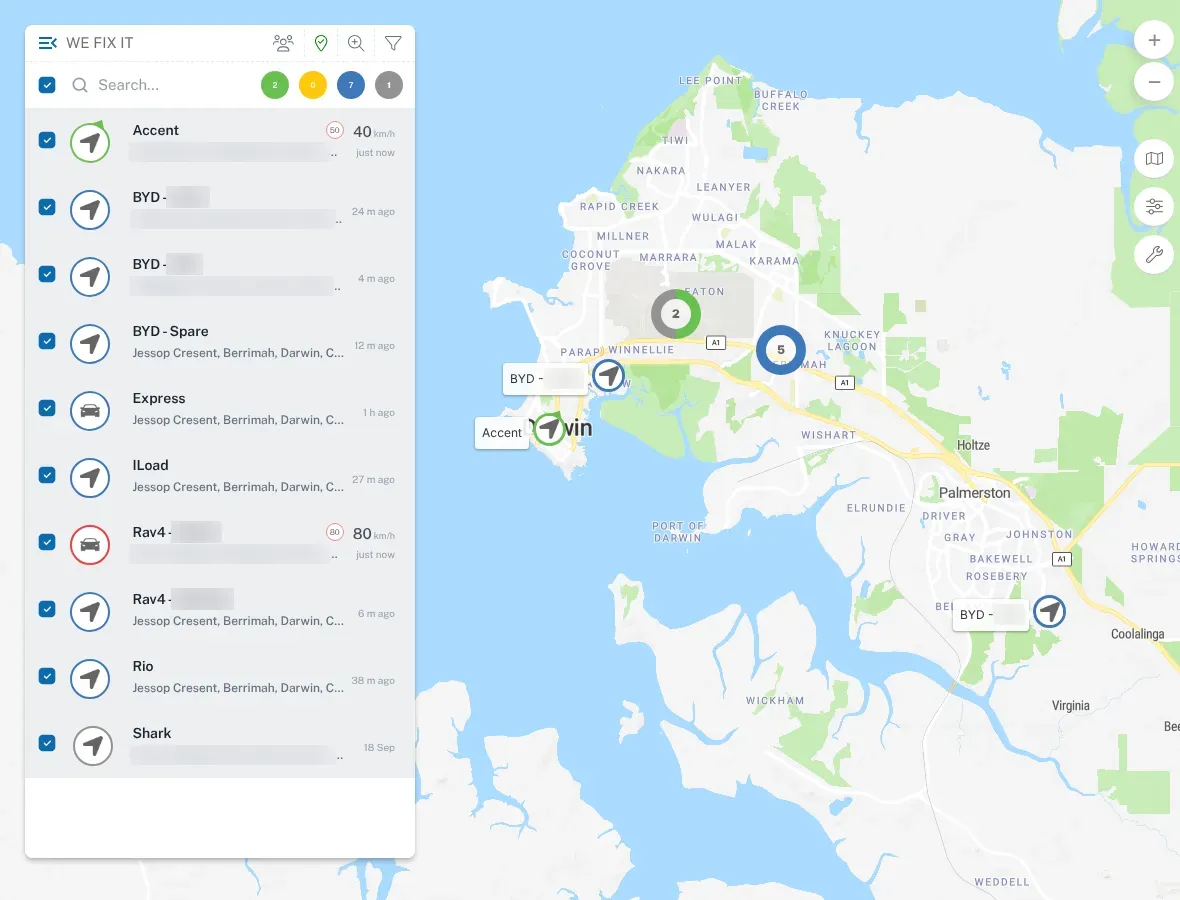
Section titled “What you’ll see”Your vehicles on the live map
Section titled “Your vehicles on the live map”Each vehicle with a working tracker shows on the map. Each one has a status:
- Moving — driving now.
- Idling — ignition on, but not moving.
- Parked — ignition off.
- Offline — the tracker hasn’t reported for a while.
If a vehicle is out of coverage, the map shows its last known location. When it’s back in range, the tracker sends what it stored while it was away. See Live map and vehicle status.
The Dashboard page
Section titled “The Dashboard page”Dashboard, at the top of the menu, shows your whole fleet at a glance, such as Fleet Violations and Total Trips for the last 7 days.
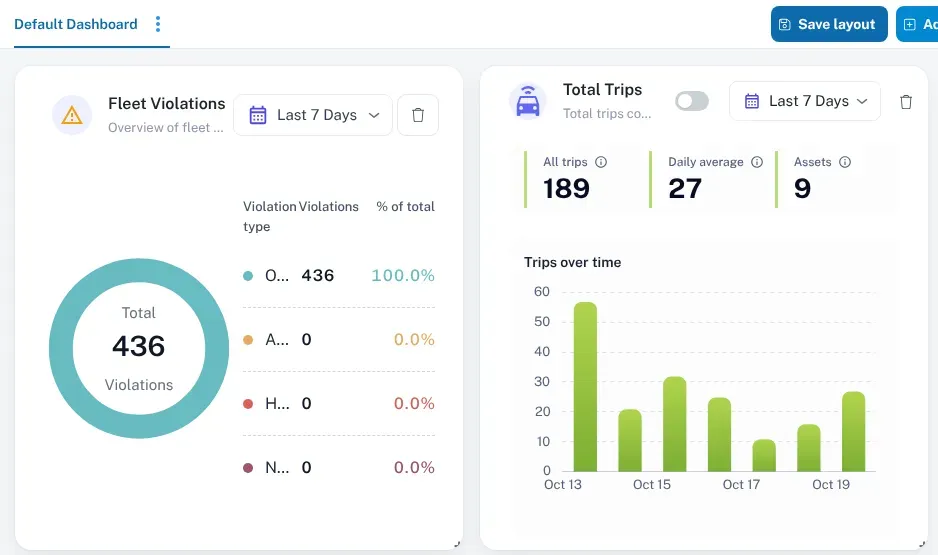
Trips building up
Section titled “Trips building up”Trips start and stop automatically. Nobody has to press anything. After the first day’s driving you’ll have trips to look back over and play back on the map. See Trips and history.
Alerts
Section titled “Alerts”Alerts depend on the rules set up for your account. Unplug, tow and impact alerts depend on how the tracker is configured — we set that up and manage it for you. See Alerts and notifications.
A vehicle isn’t showing?
Section titled “A vehicle isn’t showing?”A tracker needs the engine running and a few minutes of driving to get a GPS fix and connect for the first time. If a vehicle still isn’t on the map after a drive, work through Tracker offline or not reporting.
Your first-week checklist
Section titled “Your first-week checklist”Work through these in your first few days. Each one takes a few minutes and makes the dashboard far more useful.
- Name your vehicles. Use names your team knows — rego, fleet number or “Dave’s ute”. You can use your own IDs. To rename a vehicle, go to Asset Info, select it, and use Change Device Name on the Manage tab.
- Check every vehicle is reporting. Look for any that haven’t moved on the map since they were plugged in.
- Set up groups. Group vehicles by depot, crew, region or job, so you can find them fast. See Groups and organising your fleet.
- Get logins for your team. Tell us who else needs access, and we’ll set up a login for each person. Contact us with their names and email addresses.
- Put the app on your phone. It takes a minute. See Installing the app.
- Draw your key places. Add your yard, depots and regular sites as geofences, so you know when vehicles arrive and leave. See Geofences.
- Choose your alerts. Start with a few that matter — speeding, vehicles leaving the yard, unplugged trackers. Too many alerts and people stop reading them.
- Set your speed rules. Decide whether you’ll alert on a fixed limit, posted road limits, or zone limits. See Speeding.
- Check the odometer. If the platform’s odometer doesn’t match the dash, it can be adjusted. See Fuel and odometer.
- Tell your drivers in writing. Let them know the vehicle is tracked, what’s collected and how it’s used. See Tracking your staff.
- Tell your mechanic. Ask them to plug the tracker’s cable back in after a service. See Servicing and unplugging.
Need a hand?
Section titled “Need a hand?”If anything looks wrong, or you’d like us to walk you through the dashboard, contact us or call us.