
Trips and history playback
Every time a vehicle drives, the platform records it as a trip. Nobody has to press a button or fill in a paper logbook.
How trips are recorded
Section titled “How trips are recorded”The tracker works out when a trip starts and stops, based on the vehicle’s ignition and movement. A trip starts when the vehicle sets off with the ignition on, and ends when it stops at the end of the journey.
Each trip records:
- where and when it started and finished;
- the route the vehicle took;
- the distance travelled;
- events along the way, such as speeding or harsh braking (if those alerts are set up).
If trips look split into lots of short pieces, or joined together when they shouldn’t be, see Trips split or merged oddly.
Look at a vehicle’s trips
Section titled “Look at a vehicle’s trips”- Log in at dashboard.wetrackit.com.au.
- Go to Trips and stay on the Single Asset tab.
- Choose the vehicle from the list, and use the arrows to pick the day.
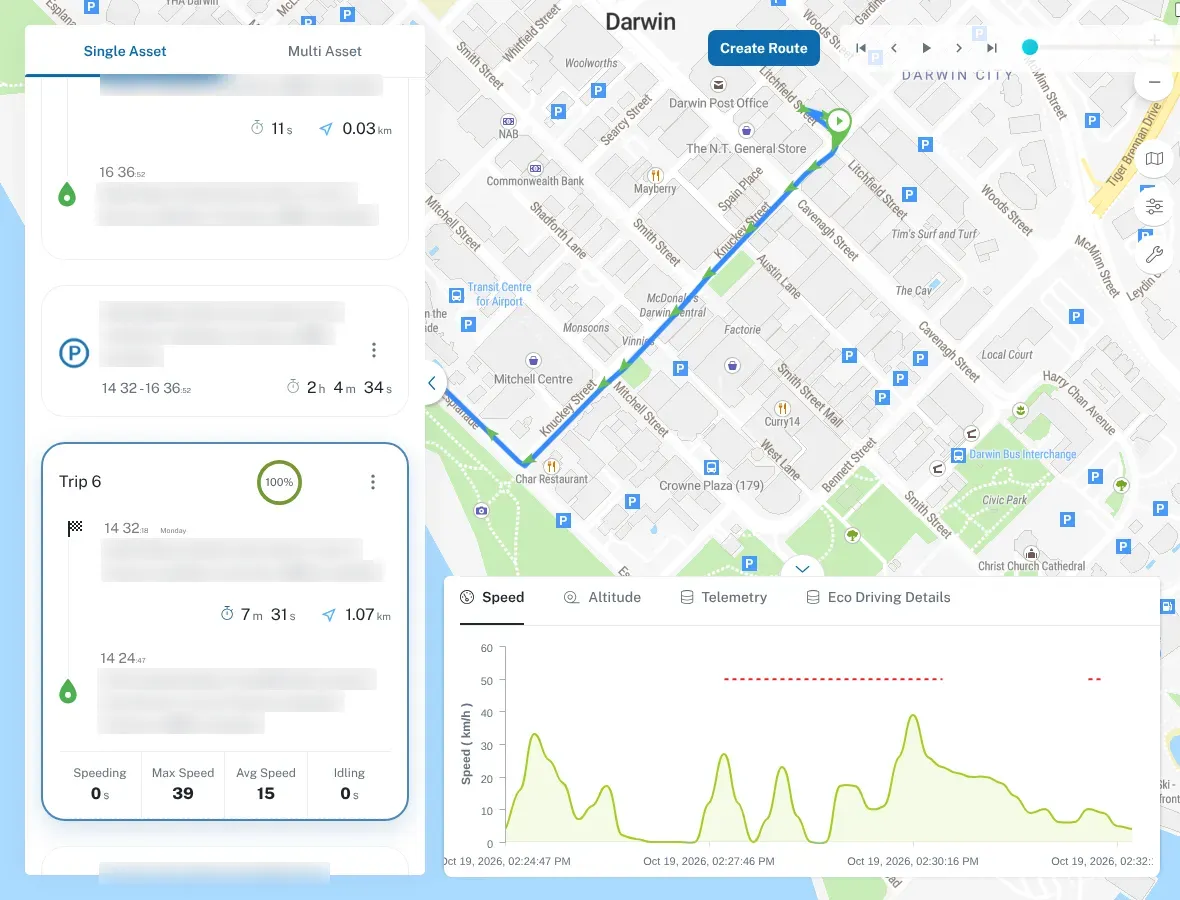
- Pick a trip from the list to see its route on the map.
Play a trip back
Section titled “Play a trip back”Playback replays a trip on the map, so you can follow exactly where the vehicle went and when.
- Open a trip, as above.
- Press the play button at the top of the map.
- Watch the vehicle move along its route. You can pause it to check the time and speed at any point.
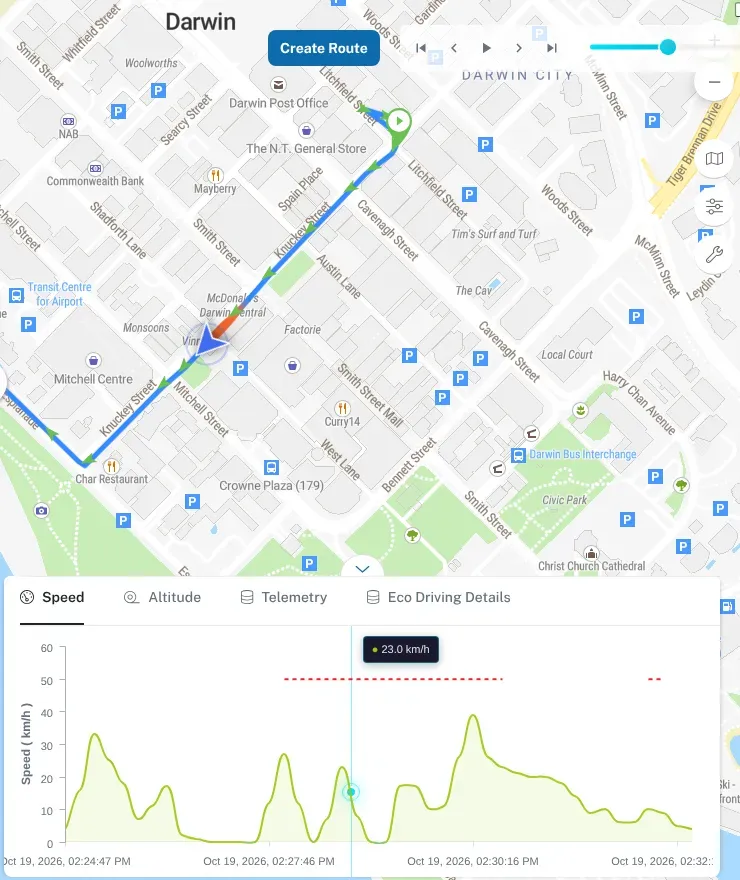
Playback is handy when a customer asks if your tech was really on site, when you’re checking a route after a complaint, or when you’re working out why a job took longer than it should have.
Mileage
Section titled “Mileage”The platform keeps a running mileage for each vehicle, and for the fleet as a whole. Use it to:
- plan servicing by distance;
- check kilometres for reimbursement or charging back to jobs;
- spot vehicles that are barely used, or worked much harder than the rest.
Daily summary
Section titled “Daily summary”The daily summary gives you one vehicle’s day at a glance — how far it went and how it was used — without opening each trip. It’s a quick way to check a vehicle’s day before you dig into the detail.
Each trip also shows its speeding time, maximum and average speed, and idling time. For summaries across the whole fleet, use Reports.
Trips out of coverage
Section titled “Trips out of coverage”If a vehicle drives out of mobile coverage, the tracker keeps recording and uploads the trip when it’s back in range. The trip may not appear until then. See Live map and vehicle status for more.