
Installing the app
The We Track IT dashboard can be installed as an app on your phone, tablet or computer. It’s the same dashboard you log in to in your browser — the same vehicles, map, alerts and reports — but it opens full screen from an icon on your home screen, without the browser’s address bar getting in the way.
You install it straight from your web browser. There’s nothing to download from an app store, and there’s nothing to update: when the dashboard changes, the app changes with it.
iPhone and iPad
Section titled “iPhone and iPad”- Open Safari and go to dashboard.wetrackit.com.au.
- Tap the Share button — the square with an arrow pointing up. On newer versions of iOS, tap the ⋯ button first, then Share.
- Scroll down the list and tap Add to Home Screen. If it isn’t there, tap More or Edit Actions to find it.
- If you see Open as Web App, leave it switched on. Check the name says We Track IT, then tap Add.
- The We Track IT icon appears on your home screen. Tap it and log in.
Using Chrome or Edge on your iPhone? Tap the Share button in the address bar, then Add to Home Screen.
Android phones and tablets
Section titled “Android phones and tablets”- Open Chrome and go to dashboard.wetrackit.com.au.
- Tap the ⋮ menu at the top right.
- Tap Add to home screen, then Install. (Some versions of Chrome say Install app instead.)
- The We Track IT icon appears on your home screen and in your app list. Tap it and log in.
Using Samsung Internet? Tap the menu (☰), then Add page to → Home screen.
Windows and Mac computers
Section titled “Windows and Mac computers”In Chrome or Microsoft Edge:
- Go to dashboard.wetrackit.com.au.
- Click the install icon at the right-hand end of the address bar — a small screen with a down arrow. If you can’t see it, open the browser’s menu and look for Install We Track IT.
- Click Install.
The dashboard opens in its own window. Pin it to your taskbar or dock so it’s always one click away.
Using Safari on a Mac? Go to the dashboard, then choose File → Add to Dock.
Using the app
Section titled “Using the app”- Log in once. Leave Remember me switched on if it’s your own phone or computer, and you’ll stay logged in. See Logging in.
- It’s the same dashboard. Your vehicles, alerts and history are the same wherever you log in, and anything you change shows up everywhere.
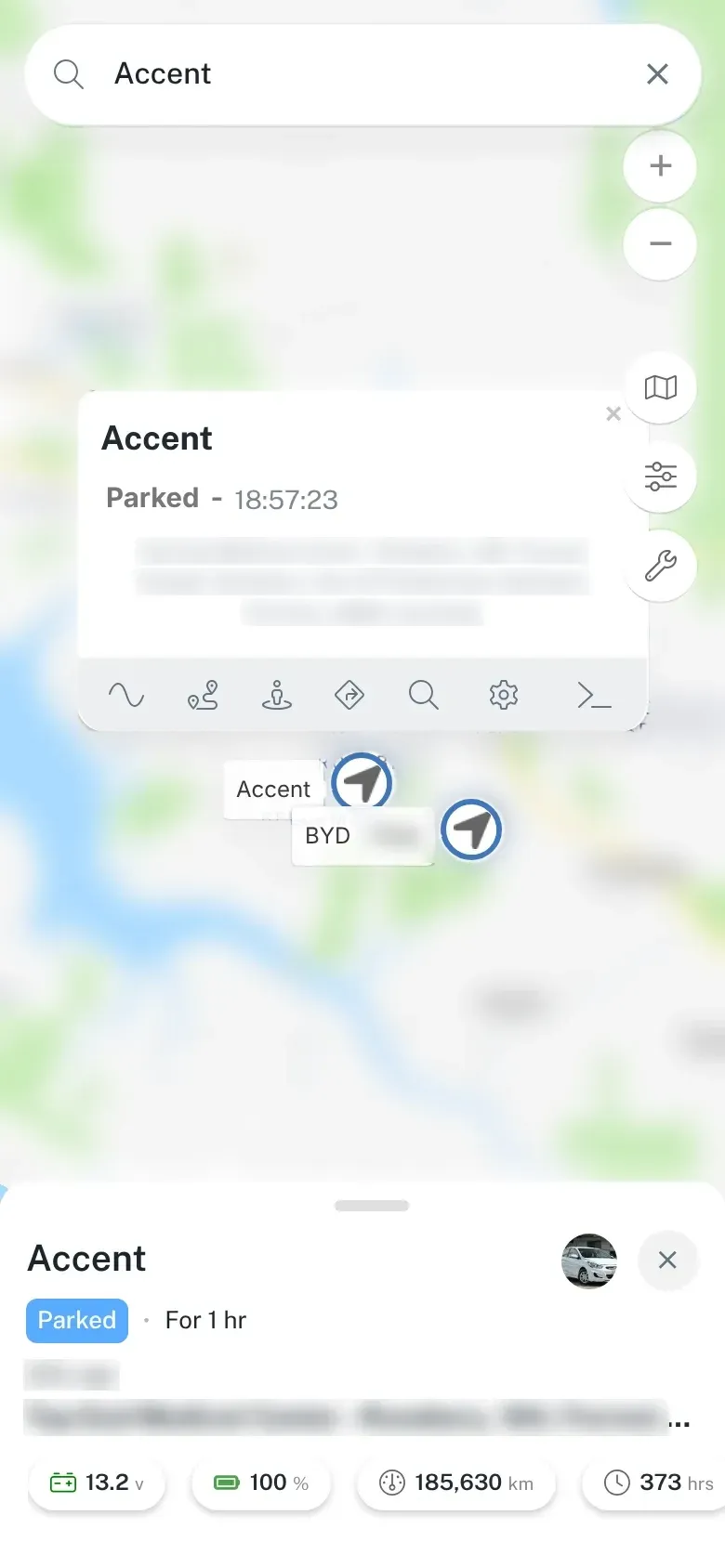
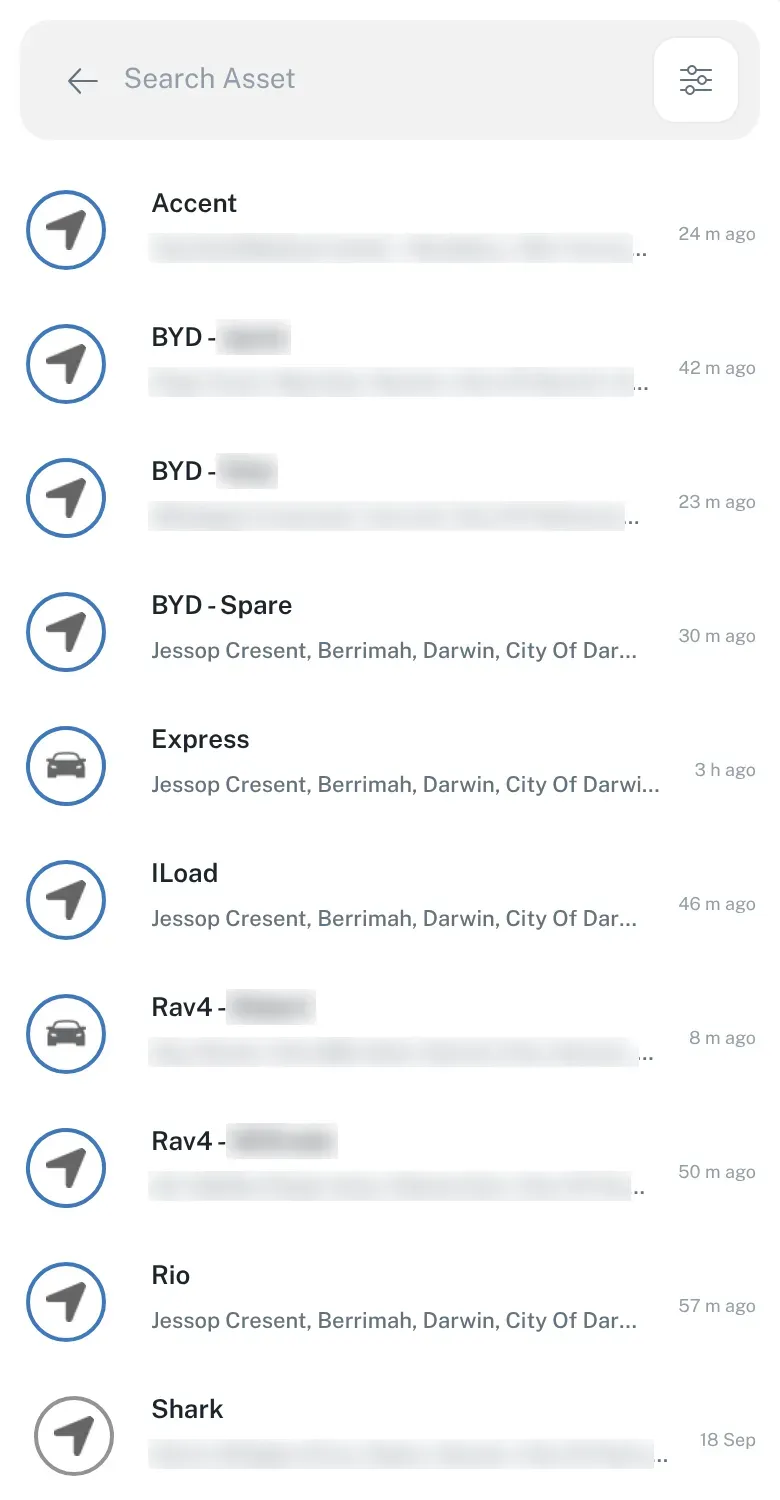
- On a phone, it’s built around the map. Tap a vehicle to see its status, how long it’s been there and its readings at the bottom of the screen. Tap the search bar at the top to see all your vehicles. Setting up alerts, zones and reports is easiest on a computer or tablet.
- It needs a connection. The app shows live data, so your phone or computer needs mobile data or Wi-Fi.
Notifications
Section titled “Notifications”If your alert rules use Push Notification, allow notifications when your phone or computer asks. On iPhone and iPad, notifications from web apps only work once the app is on your home screen — not from a Safari tab. See Alerts.
Removing the app
Section titled “Removing the app”- iPhone and iPad: touch and hold the icon, then choose the option to remove or delete it.
- Android: touch and hold the icon, then tap Uninstall (or App info → Uninstall).
- Computer: open the app, click the ⋮ or ⋯ menu in its window, and choose Uninstall We Track IT.
Removing the app only removes the icon. Your account, vehicles and history aren’t affected, and you can still log in from your browser.
Can’t see the install option?
Section titled “Can’t see the install option?”- Open the dashboard in the browser itself. If you tapped a link in an email or a messaging app, it may have opened inside that app. Look for Open in Safari or Open in Chrome first.
- Use a normal window. Private and incognito windows may not offer to install.
- Update your browser to the latest version.
- Already installed? The install option disappears once the app is on your device. Look for the icon on your home screen or in your app list.
Still stuck? Contact us and we’ll talk you through it.