
Geofences
A geofence is a zone you draw on the map. When a vehicle enters, leaves or breaks a rule inside that zone, the platform records it and can send you an alert.
Shapes
Section titled “Shapes”You can draw two shapes:
- Circle — pick a centre point and a radius. Quick for a single site, like a yard or a client’s premises.
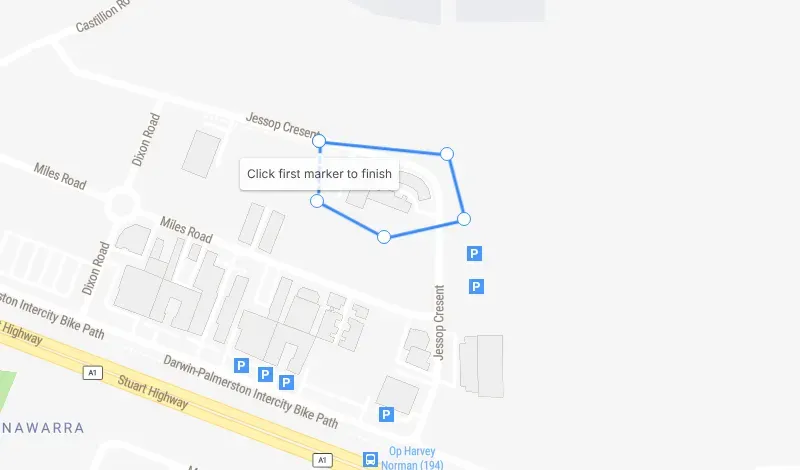
- Polygon — click around the boundary to draw any shape. Better for odd-shaped areas, like a mine lease, an industrial estate or a community boundary.
Zone types
Section titled “Zone types”Pick the type that matches what you want to know.
| Type | What it does | NT example |
|---|---|---|
| Location | Records when a vehicle enters and exits. | Your depot in Winnellie, or a regular client’s site in Palmerston. |
| No-Go Zone | Flags a vehicle that goes where it shouldn’t. | A closed road, or a restricted area on a station. |
| Keep In Zone | Flags a vehicle that leaves an area it should stay in. | Pool cars that should stay inside the Darwin region. |
| Route | Flags a vehicle that goes off a set route. | The approved road into a remote community or mine site. |
The Add Zone list also includes POI, Area and Upload GPX. If you’re not sure which one fits what you want to do, ask us.
Zone overstay
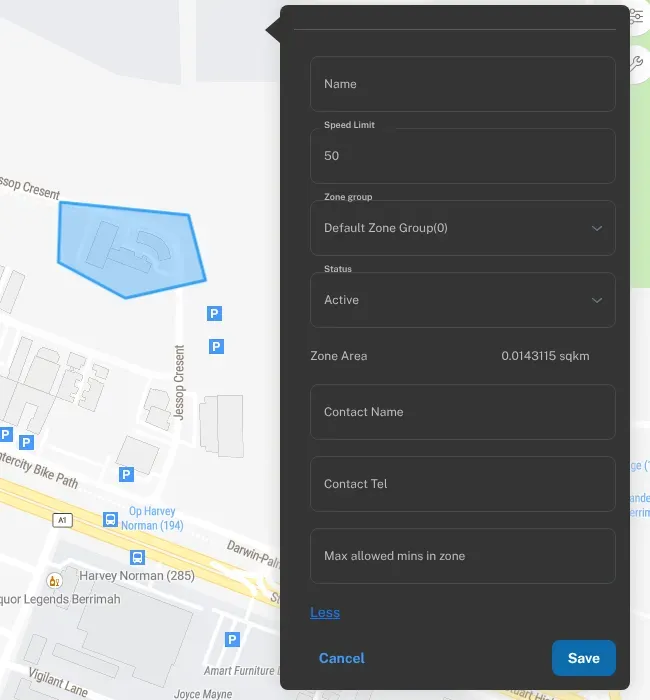
Section titled “Zone overstay”Zone overstay tells you when a vehicle stays inside a zone for too long. Set it with the zone’s Max allowed mins in zone field. To see it, click Advanced on the zone form. Use it for things like a vehicle left at a client’s site overnight, or a truck waiting too long at a loading point.
Country, state and town boundaries
Section titled “Country, state and town boundaries”As well as zones you draw, the platform can tell you when a vehicle enters or leaves a country, state or town. For example, you could find out when a vehicle crosses into Queensland or Western Australia, or leaves Katherine.
Speed limits in zones
Section titled “Speed limits in zones”You can set a speed limit for a zone, such as a low limit inside a yard or on a mine site. The platform can also record the maximum speed reached inside a zone. See Speeding.
Set up a geofence
Section titled “Set up a geofence”- Log in at dashboard.wetrackit.com.au.
- Go to Zones and open the Manage Zones tab.
- Click Add Zone and choose the zone type, such as Location, No-Go Zone or Keep In Zone.
- Choose a polygon or a circle, and draw the zone on the map. For a location zone, these are Polygon Location Zone and Circular Location Zone. For a polygon, click each corner, then click the first corner again to finish.
- Give it a clear Name, like “Depot – Winnellie” or “Client – Smith Rd”. The form also has a Speed Limit. Click Advanced for Zone group, Status, Contact Name, Contact Tel and Max allowed mins in zone.
- Click Save, then set up an alert rule if you want to be told about it. See Alerts and notifications.
Good first zones
Section titled “Good first zones”If you’re just starting, set up:
- your depot or yard;
- your two or three busiest client sites;
- anywhere vehicles should never go.
That covers most of the questions fleet managers get asked. Add more as you need them.