
Reports
The live map tells you what’s happening now. Reports tell you what happened over a day, a week or a month, across one vehicle or the whole fleet.
The reports
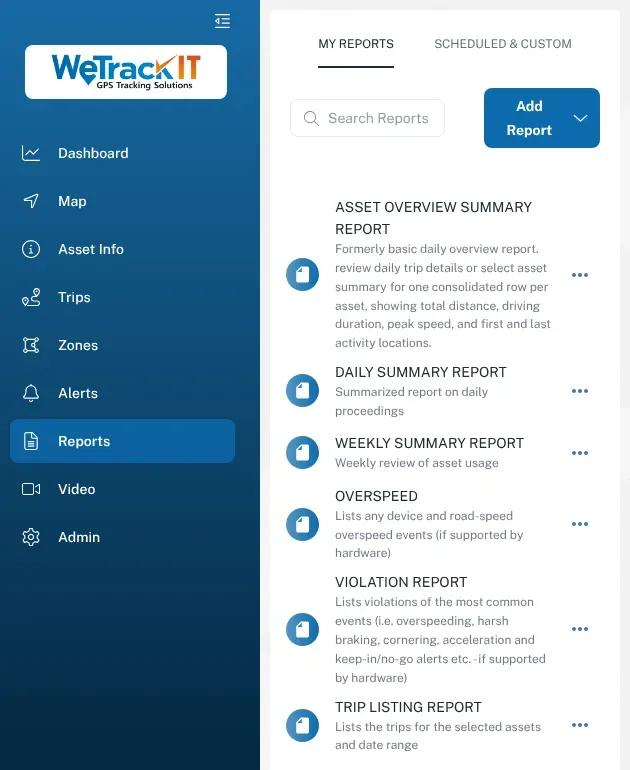
Section titled “The reports”These are the reports on the My Reports tab, with the description the dashboard gives each one.
Asset Overview Summary Report
Section titled “Asset Overview Summary Report”Trip details for each day, or one row per vehicle showing total distance, driving duration, peak speed, and first and last activity locations.
Use it to: see how far each vehicle went over a period — for servicing by kilometres, charging kilometres back to jobs, or spotting vehicles that are barely used or overworked.
Daily Summary Report
Section titled “Daily Summary Report”A summary of each vehicle’s day.
Use it to: do a quick end-of-day check without opening every trip.
Weekly Summary Report
Section titled “Weekly Summary Report”A weekly review of how each vehicle was used.
Use it to: compare weeks, and get a baseline for your fleet.
Overspeed
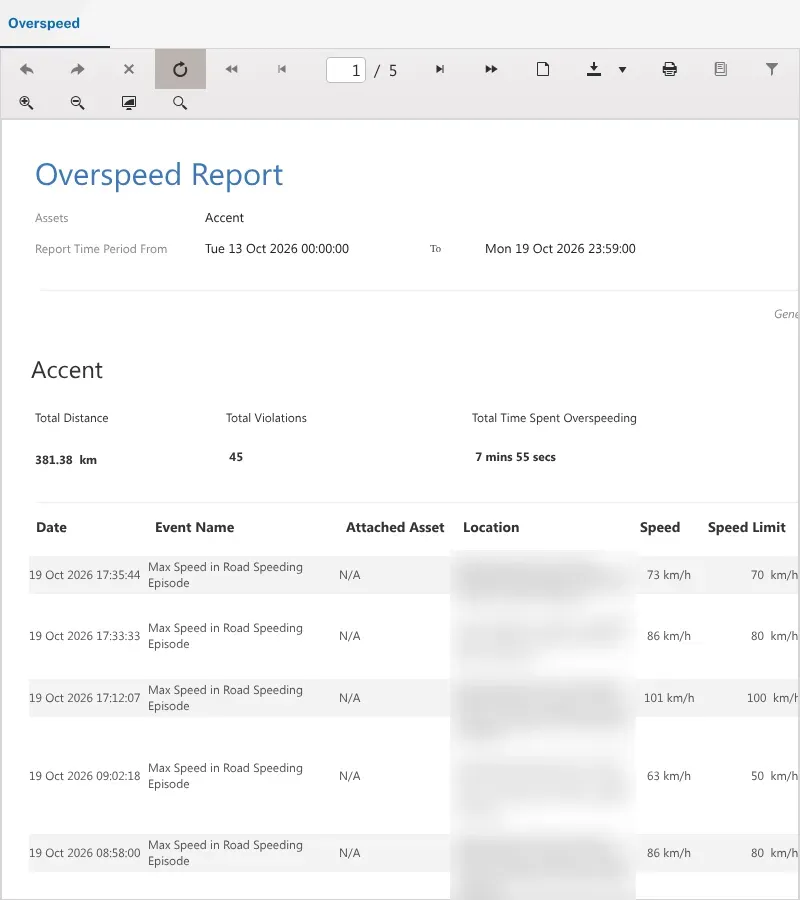
Section titled “Overspeed”Lists device and road-speed overspeed events, where the tracker supports them.
Use it to: see who’s speeding, where and by how much. See Speeding.
Violation Report
Section titled “Violation Report”Lists the most common driving and zone events — overspeeding, harsh braking, harsh cornering, harsh acceleration, and keep-in and no-go zone alerts — where the tracker supports them.
Use it to: start a conversation about driving habits. See Driver behaviour.
Trip Listing Report
Section titled “Trip Listing Report”Lists the trips for the vehicles and dates you choose.
Use it to: check a vehicle’s movements on a given day, answer “was the ute at the job?”, or back up timesheets and invoices.
Run a report
Section titled “Run a report”- Log in at dashboard.wetrackit.com.au.
- Go to Reports.
- Pick the report you want from the My Reports tab.
- Choose the vehicles.
- Choose the Report Time Period.
- Click Generate Report and check the results.
To run a report on a schedule, open the ⋯ menu next to it and choose Schedule This. Scheduled reports are listed on the Scheduled & Custom tab.
Save, print or export a report
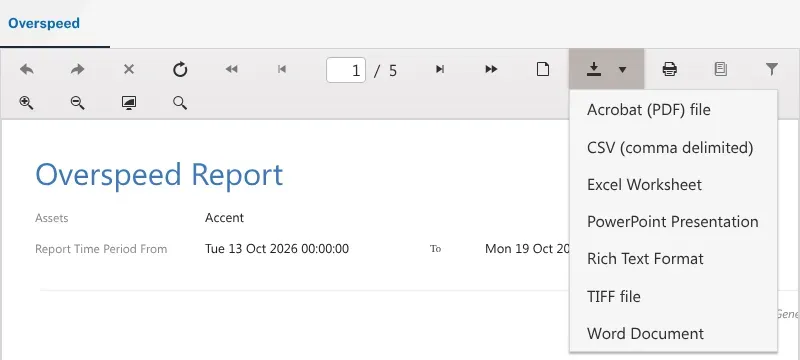
Section titled “Save, print or export a report”A generated report opens in a viewer with a toolbar along the top. Use the page arrows to move through it, and the printer button to print it.
To save a copy, open the download menu. You can export to Acrobat (PDF) file, CSV (comma delimited), Excel Worksheet, PowerPoint Presentation, Rich Text Format, TIFF file or Word Document.
Which report for which question?
Section titled “Which report for which question?”| Question | Report |
|---|---|
| Where did this vehicle go on Tuesday? | Trip Listing Report |
| How many kilometres did each vehicle do last month? | Asset Overview Summary Report |
| What did the fleet do today? | Daily Summary Report |
| How was the fleet used this week? | Weekly Summary Report |
| Who’s speeding? | Overspeed |
| Who’s braking or cornering hard, or leaving their zone? | Violation Report |
| Who’s leaving engines running? | Open the vehicle’s trips — each trip shows its idling time. Set an excessive-idle alert too. See Driver behaviour. |
Out-of-coverage trips
Section titled “Out-of-coverage trips”If a vehicle has been out of mobile coverage, its trips arrive when the tracker gets back in range and uploads what it stored. If you run a report for today and a vehicle is still out bush, its latest trips may not be in it yet. Run it again once the vehicle is back in coverage.
Distance and the vehicle’s odometer
Section titled “Distance and the vehicle’s odometer”Report distances come from the platform. If you need them to line up with the vehicle’s own odometer, see Fuel and odometer.
Sending reports to other systems
Section titled “Sending reports to other systems”Larger fleets can have report data sent automatically to their own systems using report webhooks. See Integrations and API.