
Alerts and notifications
Alerts tell you when something happens that needs attention — a vehicle leaving a site after hours, a tracker being unplugged, or a driver speeding. You choose which events matter and who hears about them.
How alerts work
Section titled “How alerts work”Alerts are set up as rules on your account. Each rule says:
- which event to watch for;
- which vehicles it applies to;
- how important it is (its priority);
- who gets told, and how.
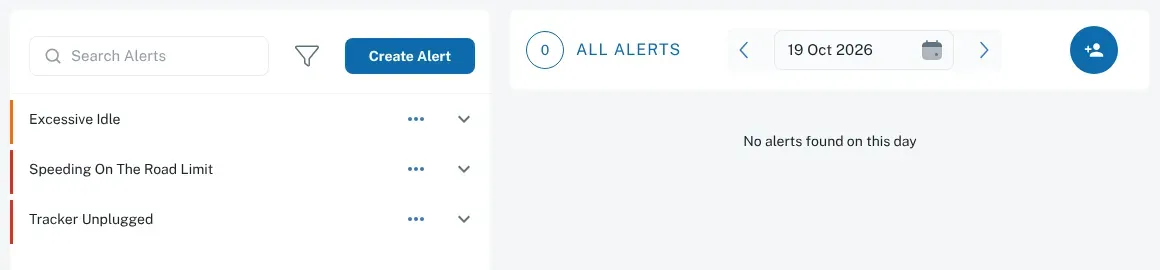
Your rules are listed on the left of the Alerts screen. The coloured bar beside each one shows its priority — Low, Medium or High.
How you get told
Section titled “How you get told”The platform can send alerts by SMS. Each account has an SMS allowance, so it’s worth keeping SMS for the alerts that really matter.
When you set up a rule, the Notify me section also offers Email, On Screen and Push Notification. Use Notify Others to send the alert to other people as well.
What can trigger an alert
Section titled “What can trigger an alert”Common events include:
- Geofences — entering or leaving a location, going into a no-go zone, leaving a keep-in zone, going off route, staying in a zone too long. See Geofences.
- Speeding — over your device limit, the posted road limit, your account-wide limit or a zone limit. See Speeding.
- Driving — harsh braking, harsh acceleration, harsh cornering and excessive idling. See Driver behaviour.
- Security and tamper — tracker unplugged, tow (vehicle moved with the ignition off), impact, mobile signal jamming, SIM swap.
- Power — vehicle battery low or disconnected, tracker backup battery low.
- Vehicle data — fault codes and engine overheating, where the vehicle shares that data. See Vehicle health and fault codes.
Set up an alert rule
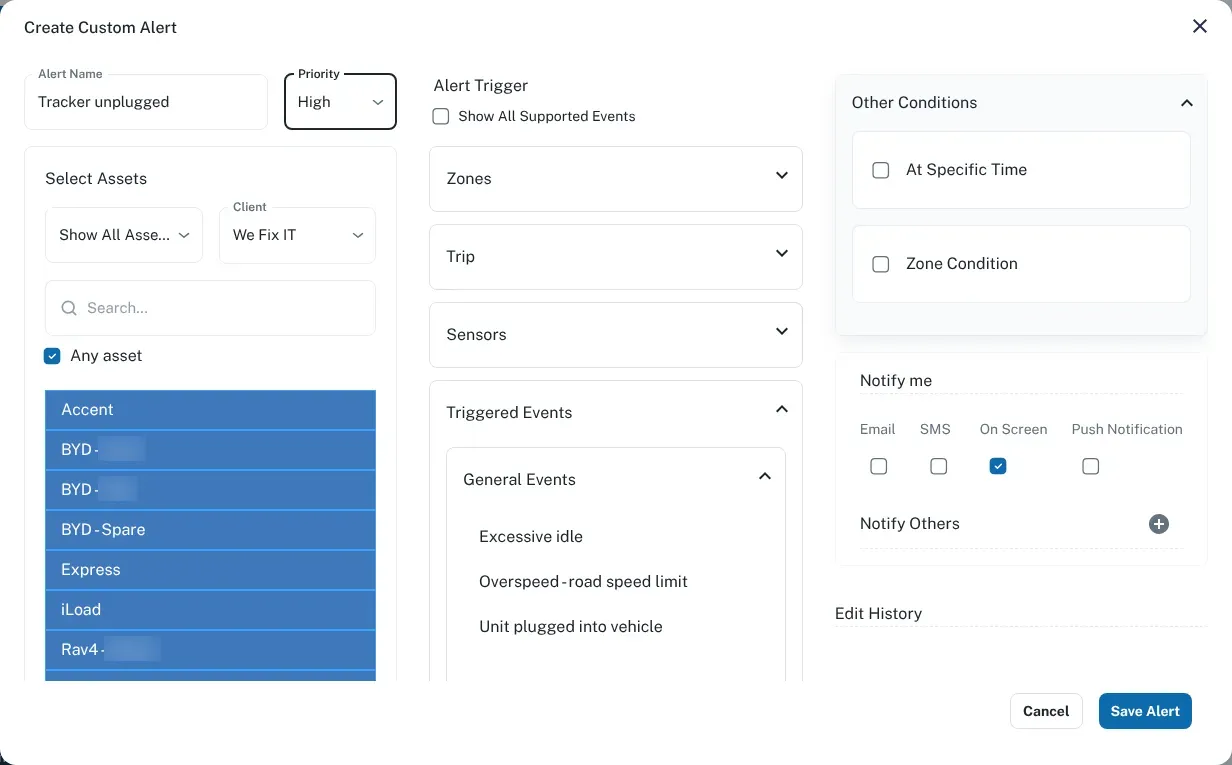
Section titled “Set up an alert rule”- Log in at dashboard.wetrackit.com.au.
- Go to Alerts.
- Click Create Alert and give the rule an Alert Name.
- Under Select Assets, choose the vehicles it applies to, or tick Any asset. Pick the vehicles first: the events under Alert Trigger only appear once vehicles are selected.
- Under Alert Trigger, open a group such as Triggered Events and pick the event.
- Set the Priority.
- Under Notify me and Notify Others, choose who gets the alert and how.
- Click Save Alert.
Keep the noise down
Section titled “Keep the noise down”Too many alerts and people stop reading them. A few habits help:
- Start small. Turn on the handful of alerts you’d actually act on — usually unplug, tow, after-hours movement and serious speeding.
- Use groups. Apply rules to the vehicles that need them, not the whole fleet. See Groups and organising your fleet.
- Use priority. Save SMS for high-priority rules, and check the rest in the dashboard or in Reports.
- Send to the right person. The depot supervisor may need a geofence alert; the owner may only want the security ones.
- Review after a month. Turn off anything nobody acts on.
Not getting alerts?
Section titled “Not getting alerts?”See Not receiving alerts.